Every Canva draw tutorial shows you the four brushes. Almost none of them
mention the limit that silently stops your drawings being saved — and that is
the one that actually costs people an afternoon.
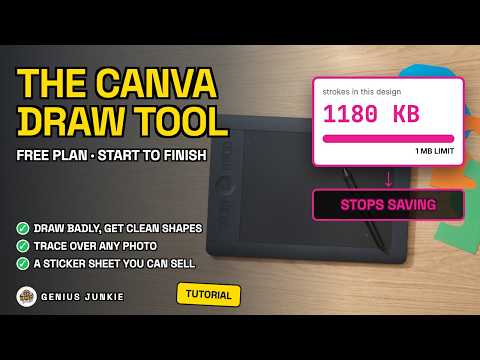
⚠️ **Canva has a stroke limit of 1 MB per design.** Not per page — per design.
Every stroke is stored as a path, and once they add up past 1 MB, Canva stops
SAVING your drawings. It does not stop you drawing: the brush still works, the
strokes still appear on your screen, they are simply not being written to the
file. You find out when you refresh and everything past the limit is gone. It's
in Canva's own help pages. The fix takes ten seconds — when a page is finished,
duplicate the design and carry on in the copy. Each design gets a fresh 1 MB.
✏️ And the trick almost nobody finds: **draw the shape, then hold still for one
second before you lift.** Canva snaps it into a clean one. It works on
rectangles, arrows, triangles, circles, stars, lines, hearts and diamonds. Lift
straight away and nothing happens, which is exactly why people never discover
it. It's the fastest way to annotate a screenshot in Canva.
In this tutorial: where the tool actually lives (Tools, not Elements — and not
in a Doc), what each of the four brushes is for, the Shift key, drawing a
sticker from scratch, tracing over a photo, what the eraser can't do, the
colour row that keeps a set consistent, and how to export it as something you
can sell on the free plan.