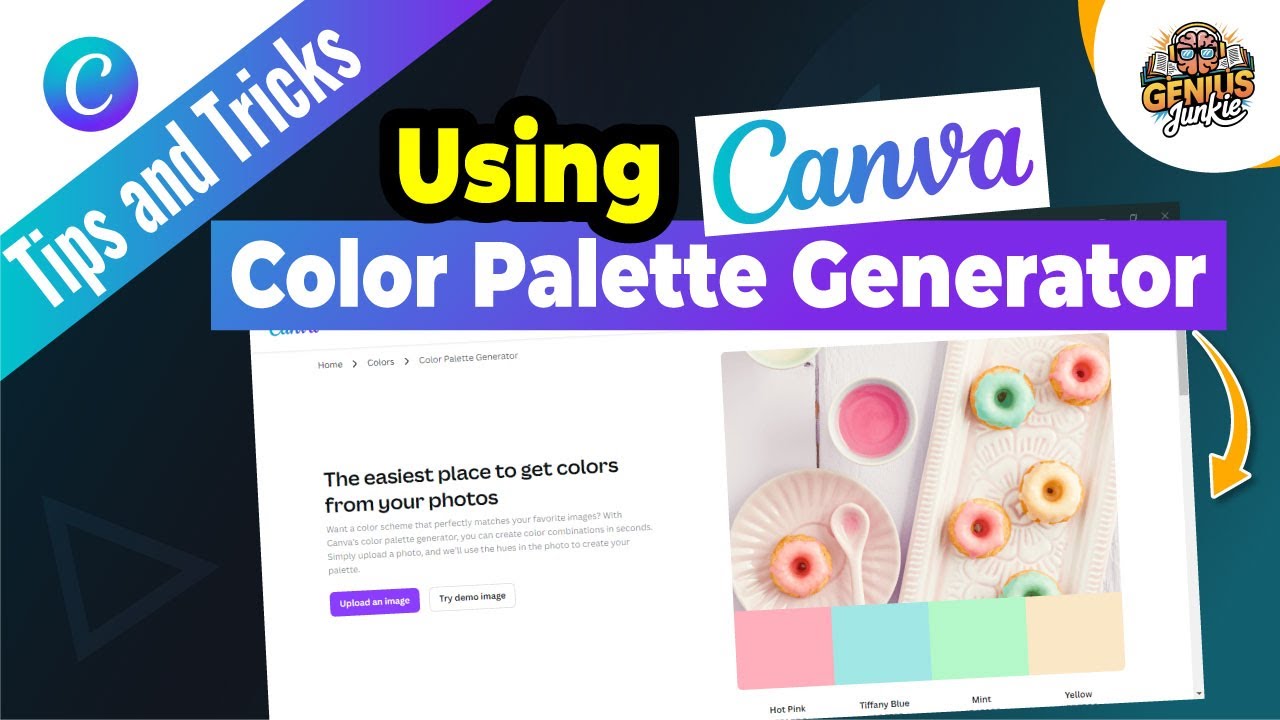
Say Goodbye to Color Confusion: Master Canva's Color Palette Generator!
Ever stared at a blank Canva canvas, paralyzed by the endless color choices? You're not alone! Colors are the soul of any design, capable of setting moods, guiding eyes, and conveying messages. But finding that perfect, harmonious palette can feel like searching for a needle in a haystack. Good news, Genius Junkies! Canva has a secret weapon that makes color selection a breeze: its incredible Color Palette Generator. And today, we're going to master it!
What is Canva's Color Palette Generator?
Think of it as your personal color stylist. This powerful tool helps you discover harmonious color combinations, whether you're starting from scratch, have a specific image in mind, or want to build on an existing color. It takes the guesswork out of color theory, allowing you to create professional-looking designs that truly pop, every single time.
How to Use Canva's Color Palette Generator Effectively
Canva offers a couple of fantastic ways to generate stunning palettes. Let's dive in:
- Accessing the Tool (Within a Design):
- Open any design in Canva.
- On the left-hand sidebar, click on the "Design" tab.
- Look for "Styles". Here, you'll find various color palette suggestions that Canva generates automatically for your design, often based on elements you've already added. You can click through these to instantly apply new color schemes.
- Using Canva's External Color Tools (For Deeper Exploration):
- Head over to Canva's dedicated Color Palette Generator website (a quick search for "Canva Color Palette Generator" will get you there!).
- Generate from an Image: Upload a photo that inspires you – perhaps a landscape, a beautiful texture, or a brand mood board. Canva will instantly extract a stunning color palette directly from your image, giving you a cohesive base to work with.
- Explore Color Combinations: Input a specific hex code for a color you love, and Canva will suggest complementary, analogous, monochromatic, and triadic palettes based on that starting point.
- Discover Pre-made Palettes: Browse through thousands of expertly curated palettes, filtered by mood, theme, or specific colors. This is perfect for when you need a quick burst of inspiration.
- Applying Your Chosen Palette:
- Once you've found a palette you love, you can copy the hex codes for individual colors.
- In your Canva design, select an element, click the color tile, and paste the hex code into the search bar to apply the exact shade.
- Even better, if you have a Canva Pro Brand Kit, you can save your favorite palettes directly into your brand colors for easy access across all your future designs!
Tips for Choosing Colors That Complement Each Other
Generating palettes is one thing, but choosing the right one is an art. Here are some pro tips:
- Know Your Vibe: What emotion or message do you want to convey? Warm colors (reds, oranges, yellows) evoke energy; cool colors (blues, greens, purples) suggest calm.
- Brand Consistency: If you have a brand, stick to your established colors or choose a palette that perfectly complements them. Consistency builds recognition!
- Contrast is Key: Always ensure there's enough contrast between text and background colors for readability. This is crucial for accessibility.
- Less is More (Often): While a palette might offer many colors, you often only need 2-4 primary colors for a clean, professional look.
- Test It Out: Don't be afraid to experiment! Apply a palette and see how it feels. Sometimes the best discoveries come from playing around.
Why Master This Tool?
Mastering Canva's Color Palette Generator isn't just about pretty colors; it's about:
- Achieving Professional Cohesion: Your designs will look polished and branded, rather than a random collection of hues.
- Saving Time & Reducing Stress: No more agonizing over color choices. The tool does the heavy lifting for you.
- Boosting Creativity: New palettes can spark fresh ideas and take your designs in exciting directions.
- Ensuring Accessibility: By guiding you to harmonious combinations, it helps create designs that are easier on the eyes for everyone.
Ready to transform your designs from drab to dazzling? Dive into Canva's Color Palette Generator and watch your creativity soar! For a full, step-by-step walkthrough, be sure to watch our accompanying YouTube tutorial!
Key Takeaways:
- Canva's Color Palette Generator helps you find harmonious color combinations effortlessly.
- Access it within your Canva design via the "Design" tab or use Canva's external Color Palette Generator website.
- Generate palettes from images, specific color codes, or explore pre-made options.
- Apply colors by copying hex codes or saving to your Canva Pro Brand Kit.
- Choose colors considering your brand's vibe, ensuring contrast, and keeping it simple.
- Mastering this tool leads to more professional, cohesive, and time-efficient designs.