
Save £200: Design Professional Business Cards in Canva (Free DIY Tutorial)
Stop overpaying for business cards! Our free tutorial shows you step-by-step how to design stunning, professional business cards in Canva, saving you hundreds of pounds.
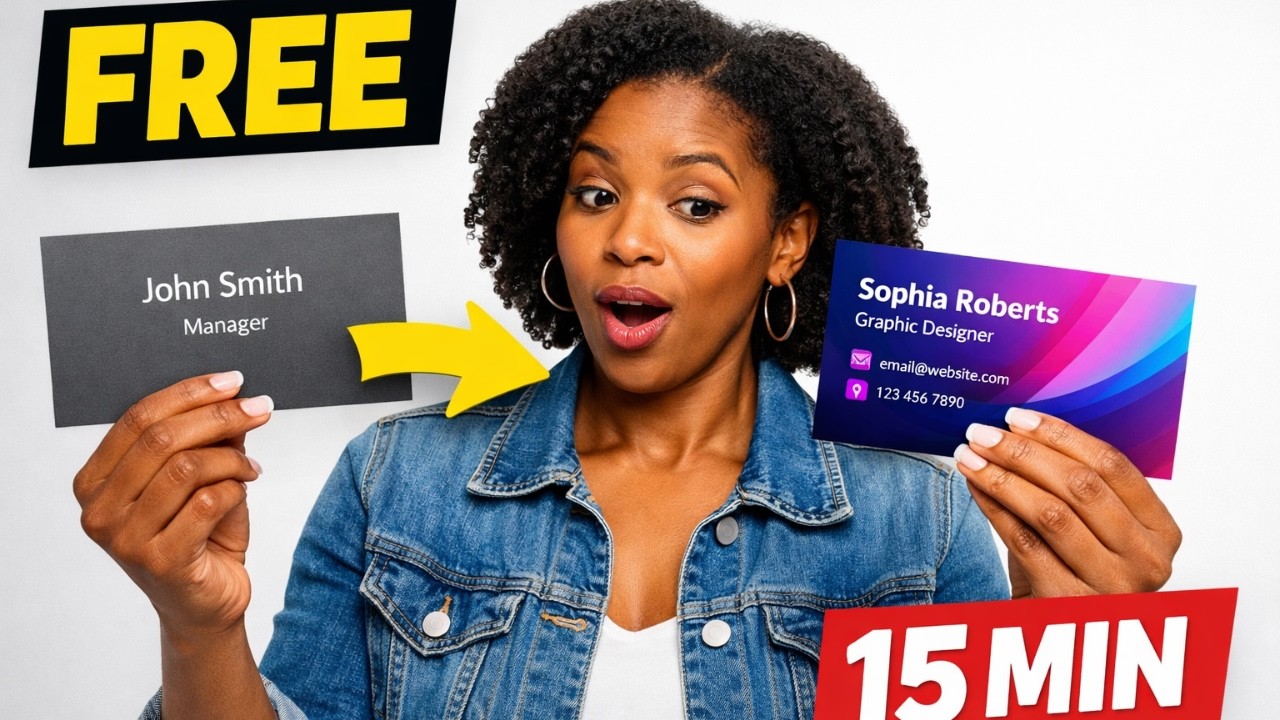
Overview
Are you a budding entrepreneur, a freelance superstar, or a small business owner looking to make a great first impression without breaking the bank? If you've ever cringed at the thought of spending hundreds of pounds on business card designs, you're in the right place!
Here at Genius Junkie, we're all about smart solutions that empower you to do more for less. And today, we're tackling one of the most common expenses for any professional: business cards. Forget shelling out a fortune to graphic designers for something you can easily create yourself with a little guidance and a fantastic free tool.
Why Pay Hundreds When You Can DIY for Free?
Let's be real. Professional designers are incredible, and for complex branding projects, they're worth every penny. But for standard business cards? Often, you're paying a premium for a service that's become incredibly accessible. That's where Canva comes in. Canva is a user-friendly graphic design platform that makes creating professional-looking visuals as simple as drag-and-drop.
Our latest video tutorial, "Saved £200 Designing My Own Business Cards in Canva," isn't just a title – it's a promise. We'll walk you through the entire process, demonstrating how easy it is to achieve a polished, memorable business card design that truly represents your brand. Imagine putting that £200 back into your marketing budget, investing in new tools, or simply treating yourself!
Unlock Your Inner Designer with Canva
You don't need a design degree or expensive software to create impactful business cards. Canva offers a vast library of templates, fonts, colours, and graphic elements that you can customize to your heart's content. Whether you prefer minimalist chic, bold and vibrant, or classic and elegant, there's a starting point for everyone. Our tutorial covers:
- Setting up your free Canva account and navigating the interface.
- Choosing the perfect business card template (or starting from scratch!).
- Customizing text, fonts, and colours to match your brand identity.
- Adding your logo, contact information, and social media handles.
- Ensuring your design is print-ready with proper bleed and margin settings.
- Downloading your final design in high-resolution formats.
The beauty of designing your own cards is not just the cost savings; it's the creative control. You get to inject your personality directly into your networking tool. No more back-and-forth with designers, no more settling for designs that aren't quite 'you'. With Canva, you're in the driver's seat.
Ready to Save and Impress?
This free tutorial is your ticket to professional, budget-friendly business cards. Stop letting the cost of design hold you back from making a fantastic first impression. Click play on our video, follow along, and prepare to be amazed at what you can achieve. Your wallet (and your brand) will thank you!
Key Takeaways
- You can save significant money (£200+) by designing your own business cards.
- Canva makes professional-looking design accessible to everyone, no prior experience needed.
- Designing your own cards gives you complete creative control over your brand's first impression.
- This free tutorial provides all the steps needed to create print-ready business cards.
Video Breakdown
[0:00] Introduction: The Cost Problem
Understanding why traditional business card design can be expensive and our solution.
[0:45] Setting Up Your Canva Account
Quick guide to signing up for a free Canva account and getting started.
[1:30] Choosing a Business Card Template
Navigating Canva's extensive template library to find your perfect starting point.
[2:55] Customizing Your Design
Step-by-step on changing text, fonts, colours, and adding your logo and details.
[4:10] Ensuring Print-Readiness
Important tips for bleed, margins, and resolution to get professional print results.
[5:00] Downloading & Next Steps
Exporting your design in the correct format and recommendations for printing services.
Some links in this post are affiliate links - I may earn a commission at no extra cost to you. Watch the full tutorial on YouTube.