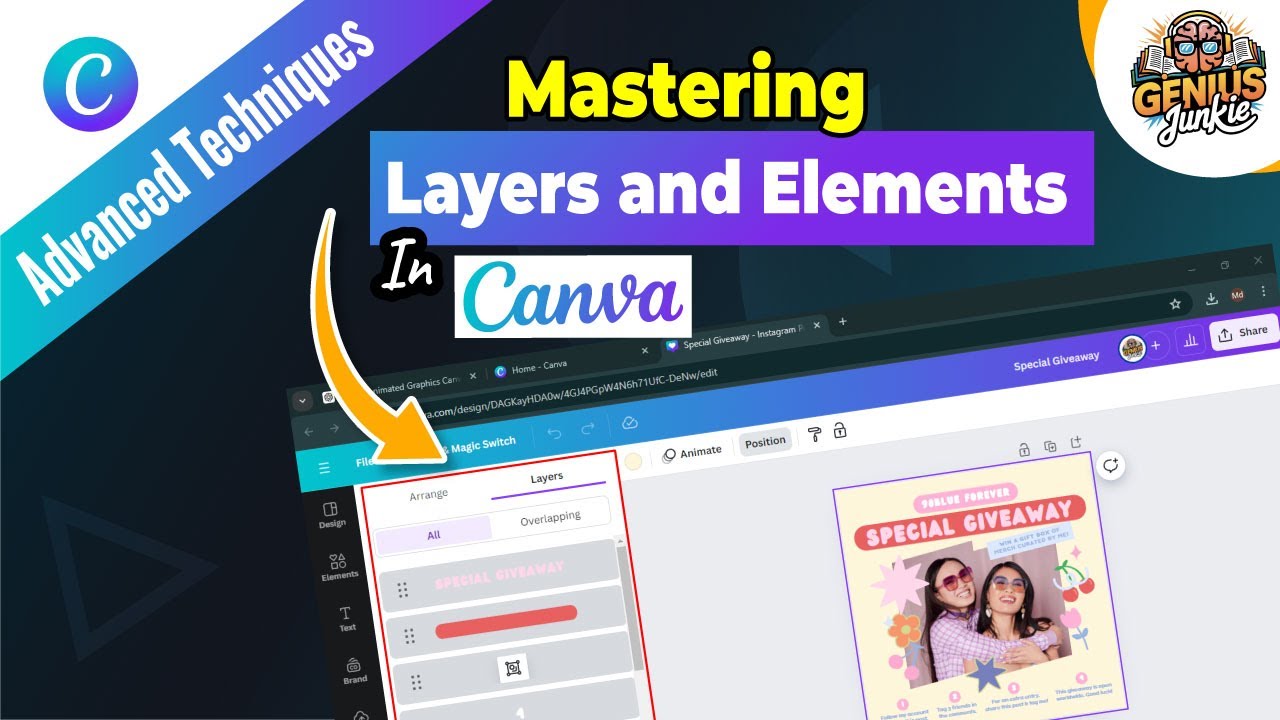
Mastering Layers in Canva: Your Easy Step-by-Step Guide to Pro Designs
Welcome back, Genius Junkies! Ever wonder how some Canva designs just pop, looking polished and professional, while others fall a bit flat? The secret, my friends, often lies in mastering one fundamental skill: layers. Think of layers as transparent sheets stacked on top of each other, each holding a different part of your design. Understanding how to manage them is absolutely crucial for creating stunning visuals that truly stand out.
In this post, inspired by our latest YouTube tutorial, we're diving deep into the world of Canva layers. Whether you're a complete beginner or just looking to refine your workflow, this guide will equip you with the knowledge to wield layers like a design pro!
What Exactly Are Layers and Why Do They Matter?
At its core, a layer is simply an individual element within your design. It could be text, an image, a shape, an icon, or even a background. When you add multiple elements to your Canva canvas, they automatically create a stack of layers. Why is this so important?
- Control: Layers give you precise control over every single element in your design.
- Organization: They help you keep complex designs tidy and easy to navigate.
- Depth & Dimension: By strategically arranging layers, you can create a sense of depth, making your designs more dynamic and engaging.
- Professionalism: Well-managed layers result in cleaner, more intentional, and ultimately more professional-looking designs.
How to Access and Use Layers in Canva
Canva makes layer management surprisingly intuitive. Here's how you get started:
- Select an Element: Click on any element on your canvas (text, image, shape).
- Go to the 'Position' Tab: In the top toolbar, you'll see a button labeled "Position." Click on it.
- Find the 'Layers' Panel: Within the 'Position' panel, you'll find a tab specifically for "Layers." Click it!
Voila! You'll now see a list of all the elements on your canvas, ordered from top to bottom. The element at the very top of this list is the one closest to you (on top of everything else), and the one at the bottom is furthest away (behind everything).
Managing Your Layers Like a Pro
Once you're in the Layers panel, a world of possibilities opens up:
- Reordering Elements: This is the most fundamental layer skill! Simply click and drag any layer up or down in the list to change its position relative to other elements. Want text to appear over an image? Drag the text layer above the image layer!
- Grouping and Ungrouping: Select multiple elements (hold Shift and click) and then click "Group" in the top toolbar. This combines them into a single, movable unit, making it easier to manage complex sections of your design. To separate them again, select the group and click "Ungroup."
- Locking Layers: Ever accidentally move an element you've perfectly placed? Prevent this by selecting the element and clicking the small padlock icon in the top toolbar (or right-click and choose "Lock"). Locked layers can't be moved or edited until unlocked.
- Hiding Layers: Sometimes you want to temporarily remove an element from view without deleting it. Select the element and click the "eye" icon in the Layers panel (or right-click and choose "Hide"). This is super handy for decluttering your workspace!
Creating Depth and Dimension
This is where layers truly shine! By thoughtfully stacking elements, you can give your designs a more dynamic and engaging feel. For example:
- Place a semi-transparent shape between a background image and text to make the text pop.
- Overlap elements slightly, ensuring the "closer" element is higher in your layer stack.
- Use shadows strategically on elements that are "on top" to enhance the illusion of depth.
Pro Tips for Layer Organization
- Keep Your Canvas Clean: Regularly check your Layers panel. If you have unused elements, delete them.
- Use Groups Wisely: Group related elements (e.g., a heading with its subheading, an image with its caption) to keep your layers panel streamlined.
- Name Your Elements (If Needed): While Canva doesn't have a direct "rename layer" feature, you can often identify elements by their type in the panel (e.g., "Text Box," "Rectangle," "Photo"). Be mindful of what each one is!
Key Takeaways
- Layers are individual design elements stacked on your canvas.
- Access layers via the "Position" tab in the top toolbar.
- Drag and drop layers to reorder elements and create depth.
- Use Group, Lock, and Hide functions for efficient workflow.
- Mastering layers elevates your designs from amateur to professional.
And there you have it, Genius Junkies! Mastering layers is a game-changer for anyone serious about creating professional-looking designs in Canva. Now go forth, practice these techniques, and watch your designs transform! Don't forget to check out the full video tutorial on our YouTube channel for a visual walkthrough!