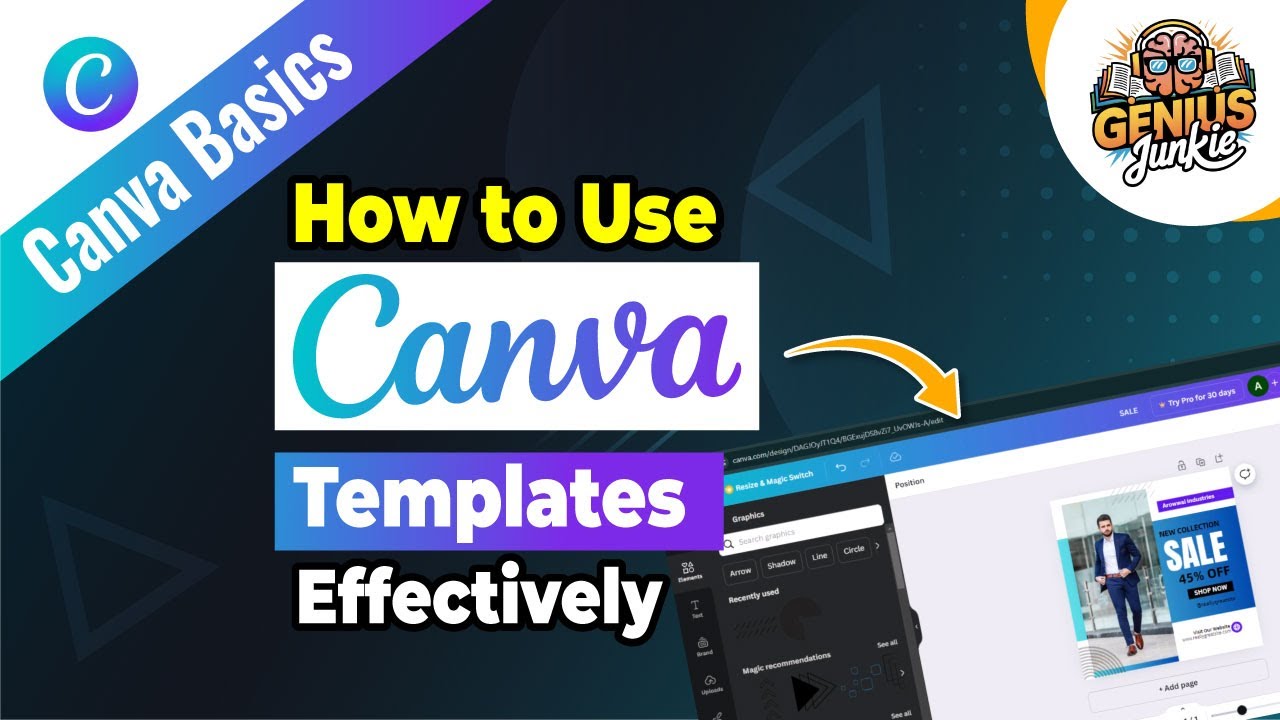
Unlock Your Design Superpowers with Canva Templates!
Are you tired of staring at a blank canvas, wondering where to even begin with your design projects? What if we told you there’s a way to create professional, eye-catching graphics in minutes, even if you’re not a design guru? Welcome to the world of Canva templates, your secret weapon for effortless design!
At Genius Junkie, we’re all about making design accessible and fun. That’s why we’ve put together the ultimate guide on how to use Canva templates effectively. Whether you're a beginner or just looking to streamline your workflow, this post (and our accompanying video tutorial!) will show you how to transform pre-designed layouts into personalized masterpieces.
Why Canva Templates Are Your Best Friend
Think of Canva templates as your design starting block. They provide a professional foundation, saving you countless hours and creative energy. Here’s why they’re a game-changer:
- Time-Saving: No need to start from scratch.
- Professional Look: Designed by experts, ensuring aesthetic appeal.
- Inspiration Galore: Discover new layouts and design ideas.
- Consistency: Maintain brand identity across all your designs.
Step-by-Step: Mastering Canva Templates Like a Pro
Ready to dive in? Here’s how you can make the most of Canva’s incredible template library. For a visual walkthrough, make sure to check out our full video tutorial!
- Choose the Right Template:Start by selecting a template that aligns with your project's purpose and aesthetic. Use Canva's search bar to filter by category or theme. Consider its structure and adaptability, not just its initial look.
- Customize Your Content:Click on text boxes to edit headlines, body copy, and calls to action. Replace placeholder images with your own photos or choose from Canva’s vast stock library. Your content is key!
- Tweak Colors & Fonts:Make the template truly yours by adjusting colors to match your brand palette. Experiment with different font pairings to find a style that resonates with your message and brand personality.
- Add or Remove Elements:Don't be afraid to modify! Add icons, shapes, lines, or illustrations from Canva’s elements library. Delete anything that doesn't serve your design's purpose. Sometimes less is more, but a little flair can be perfect.
- Organize & Align:Use Canva’s alignment tools and smart guides to ensure everything is perfectly placed and balanced. Group elements for easier manipulation and maintain visual hierarchy for a clear message.
- Review & Refine:Before downloading, take a step back. Is the message clear? Any typos? Does it look cohesive? Get a fresh pair of eyes if possible. Make final adjustments for a polished, impressive design.
Pro Tips for Template Mastery
- Save Your Customized Templates: Once you've perfected a design, save it as a new template in your brand kit (Canva Pro feature) or simply duplicate it for future use.
- Understand Design Principles: Even with templates, a basic understanding of contrast, balance, and proximity will elevate your designs.
- Stay Brand Consistent: Always refer back to your brand guidelines for colors, fonts, and imagery to maintain a cohesive look.
Key Takeaways
- Canva templates are powerful tools for creating professional designs quickly.
- Personalize templates by customizing content, colors, fonts, and elements.
- Don't be afraid to modify templates to fit your unique brand and message.
- Always review and refine your designs before finalizing.
- For a visual guide, watch the full "How to Use Canva Templates Effectively" video on Genius Junkie!
Ready to Design?
With these steps, you're well on your way to becoming a Canva template master! Say goodbye to design struggles and hello to stunning graphics that capture attention and communicate effectively. For a deeper dive and to see all these tips in action, make sure to watch our detailed video tutorial:
Watch: How to Use Canva Templates Effectively | Genius Junkie
Don't forget to subscribe to Genius Junkie for more invaluable tips, tutorials, and productivity hacks that will supercharge your design and digital marketing efforts!