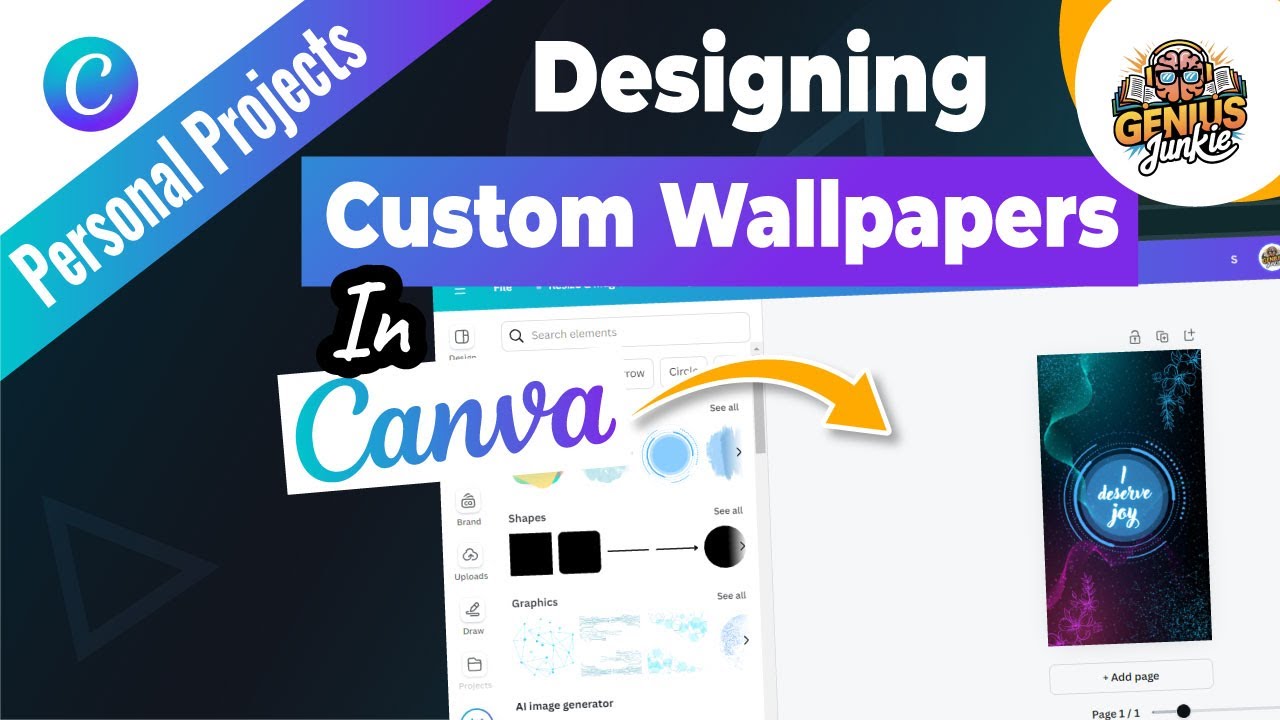
Unleash Your Creativity: Design Custom Wallpapers in Canva!
Here at Genius Junkie, we believe your digital world should be as unique as you are. And what's more personal than the background staring back at you from your phone, tablet, or desktop every day? Generic wallpapers are a thing of the past! With Canva, you have the power to create stunning, custom designs that perfectly reflect your style, mood, or even your brand.
Whether you're looking to refresh your phone's look, create an inspiring desktop background, or deck out your tablet with a personalized touch, Canva makes it incredibly easy. In this post, inspired by our latest video tutorial, we'll walk you through the simple steps to design your dream wallpapers.
Why Custom Wallpapers?
Beyond just looking good, custom wallpapers offer several benefits:
- Personal Expression: Showcase your hobbies, passions, or favorite memories.
- Motivation: Design wallpapers with quotes or goals to keep you inspired.
- Branding: Maintain a consistent visual identity across all your devices if you're a content creator or business owner.
- Organization: Create segmented backgrounds to help organize apps on your home screen.
Ready to Design? Here's What You'll Learn:
Our easy step-by-step guide will show you how to leverage Canva's powerful tools to create beautiful and personalized wallpapers. You'll learn:
- How to choose and customize Canva’s vast library of wallpaper templates.
- The simple process of adding your own images, text, and unique design elements.
- Tips for making your wallpaper truly your own.
Your Step-by-Step Guide to a Stunning Custom Wallpaper:
Let's dive into the creative process!
- Choose Your Canvas & Template:First things first, you need the right dimensions! Open Canva and search for "wallpaper" or "phone wallpaper," "desktop wallpaper," or "tablet wallpaper." Canva will suggest pre-sized templates for various devices. You can select one of their professionally designed templates as a starting point, or if you're feeling adventurous, begin with a blank canvas and set custom dimensions.
- Personalize with Elements & Text:This is where the magic happens! Canva's extensive library of design elements is at your fingertips. Drag and drop graphics, icons, shapes, lines, and more. Experiment with different fonts, colors, and effects to add text that speaks to you. Want a minimalist look? Focus on simple shapes and clean typography. Craving something vibrant? Layer patterns and bold colors. Don't forget to explore Canva's vast collection of free and Pro stock photos and videos if you need inspiration.
- Add Your Unique Touch (Images & Branding):Make it truly yours! Upload your own photos – whether it's a cherished family memory, a breathtaking travel shot, or a beloved pet. You can easily drag and drop your images into your design. Use Canva's editing tools to crop, apply filters, adjust brightness, or remove backgrounds. If you're building a brand, incorporate your brand colors, logo, or specific aesthetic to ensure your devices reflect your professional identity.
- Download & Set Your Masterpiece:Once your design is perfect, it's time to download it! We recommend downloading your wallpaper as a PNG file for the best quality. For animated wallpapers, a GIF or MP4 might be suitable. Once downloaded, transfer the file to your desired device. The process for setting a wallpaper varies slightly by device, but generally involves going to your device's "Settings" > "Wallpaper" or "Display" and selecting your new custom creation. Voila!
Key Takeaways:
- Canva offers pre-sized templates for phone, desktop, and tablet wallpapers.
- Utilize Canva's vast library of elements, fonts, and stock photos to customize your design.
- Upload your own images and apply filters or adjustments for a personal touch.
- Download your final wallpaper as a PNG for optimal quality.
- Setting a custom wallpaper is a quick way to personalize and inspire your daily digital interactions.
Start Designing Today!
Ready to transform your devices? Watch our full video tutorial for a complete visual walkthrough and even more tips and tricks. Don't forget to like, share, and subscribe to Genius Junkie for more Canva design and Etsy tutorials!