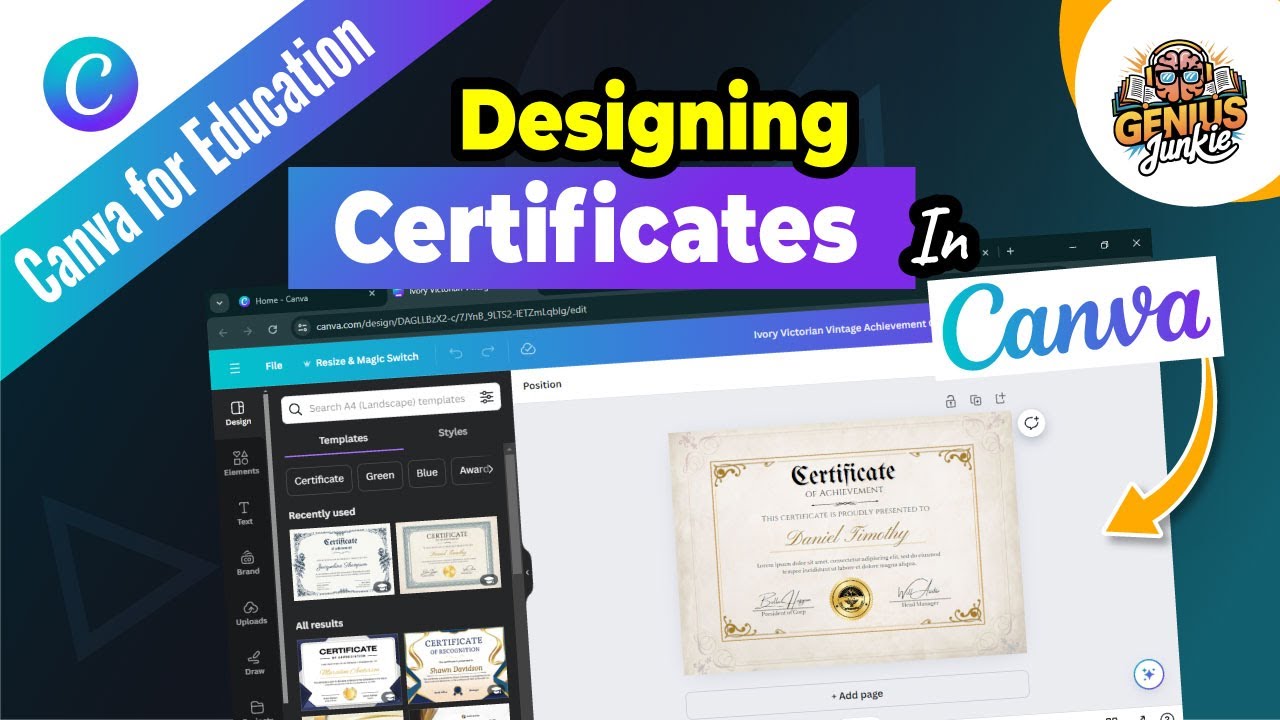
Hey Genius Junkies! Ever needed a professional, polished certificate but felt overwhelmed by complex design software? Get ready to unleash your inner designer because today, we’re diving into designing stunning certificates right within Canva! Whether it’s for school, events, or business, Canva makes it a breeze. We'll guide you step-by-step to create awards that truly impress, all with a few clicks and a dash of creativity.
Getting Started: Choosing Your Perfect Canva Template
Canva's vast library of professionally designed templates means you don't need to start from scratch!
- Head to Canva: Log into your account.
- Search for "Certificate": Find thousands of options, from formal to artistic.
- Filter Your Search: Narrow choices by style, theme, or color to match your purpose.
- Select a Template: Pick one that catches your eye; we’ll customize everything later!
Making It Yours: Customization is Key
Now, transform that template into your unique masterpiece!
- Change Text and Fonts: Edit content for recipient names, award titles, and dates. Experiment with Canva's fonts for legibility and tone.
- Adjust Colors: Select elements and use the color palette to match your brand or aesthetic.
- Add Logos and Graphics: Upload your logo or search Canva's elements for icons to enhance your design.
- Rearrange Elements: Move, resize, or delete elements with Canva's intuitive drag-and-drop interface.
Genius Junkie's Design Pro Tips for Elegant Certificates
Want your certificates to look truly professional? Keep these Genius Junkie tips in mind:
- Consistency is King: Stick to 1-2 primary fonts and a cohesive color palette.
- Embrace White Space: Don't overcrowd; ample white space makes your design clean and readable.
- High-Quality Elements: Use high-resolution logos and images to avoid pixelation.
- Proofread, Proofread, Proofread: Double-check all text for typos before finalizing.
- Consider Your Audience: Tailor the design to the recipient and occasion.
Final Steps: Exporting and Printing Your Masterpiece
Once your certificate is perfect, get it ready for the real world!
- Download: Click 'Share' then 'Download.'
- Choose File Type: Select PDF Print for high-quality printing. PDF Standard or PNG are good for digital sharing.
- Print Settings: Use high-quality paper (like cardstock) and ensure your printer settings are on the highest quality.
And there you have it, Genius Junkies! Designing professional, beautiful certificates in Canva is incredibly simple. With these step-by-step instructions, you're now equipped to create awards that truly honor achievements. Don't forget to watch our full video tutorial on the Genius Junkie YouTube channel for a visual walkthrough and even more tips! Happy designing!
Key Takeaways
- Canva offers thousands of customizable certificate templates.
- Personalize templates by changing text, fonts, colors, and adding logos.
- Prioritize consistency in fonts and colors for a professional look.
- Utilize white space and high-quality elements.
- Always proofread thoroughly before finalizing.
- Download as PDF Print for the best print quality.