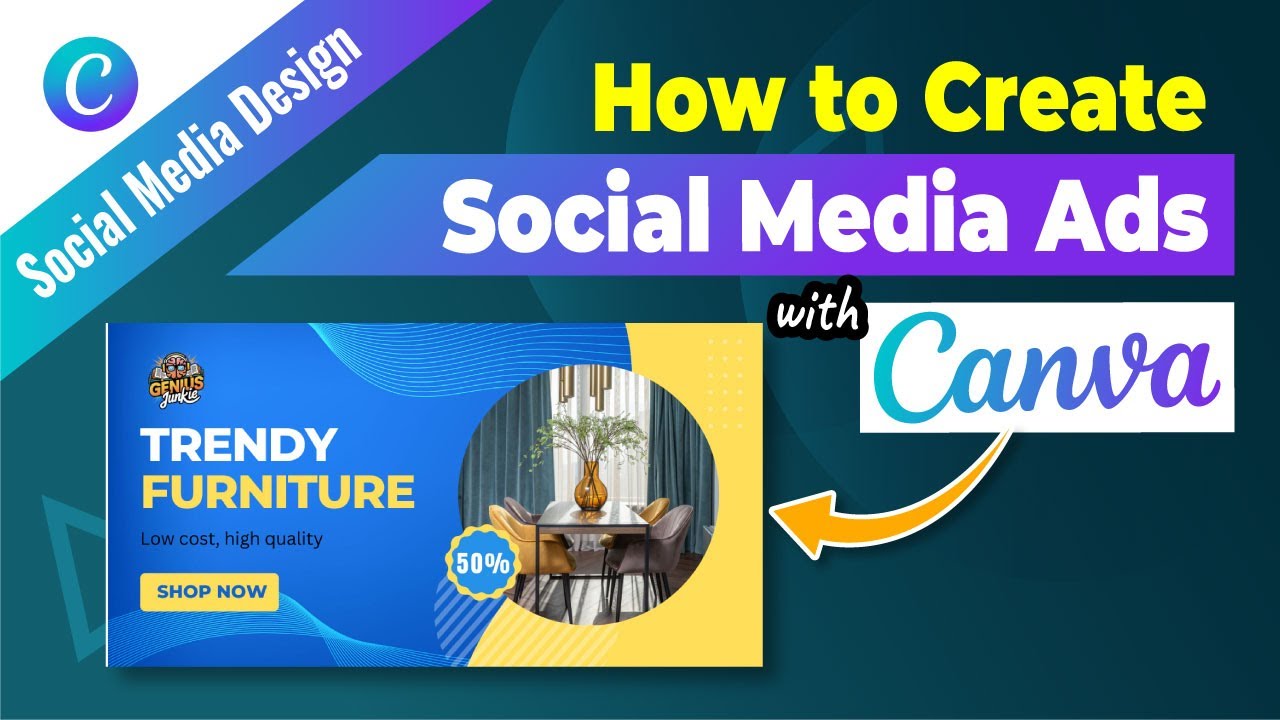
Hey there, Genius Junkies! Are you tired of your amazing products or services getting lost in the endless scroll of social media feeds? It's time to make your brand impossible to ignore! In today's digital world, eye-catching social media ads aren't just a luxury; they're a necessity for attracting new customers and growing your business.
That's exactly what we dived into in our latest YouTube video, "How to Create Stunning Social Media Ads in Canva | Genius Junkie" (you'll want to check it out for the full visual walkthrough!). But if you prefer to read along or need a quick refresher, you're in the right place. We're breaking down how to create killer social media ads using one of our favorite tools: Canva!
Why Your Social Media Ads Need to Shine
Think about it: every day, millions of people scroll through Facebook, Instagram, Pinterest, and more. To stand out, your ad needs to be more than just a picture with some text. It needs to be a mini-masterpiece that stops the scroll, conveys your message instantly, and compels viewers to take action. Stunning ads build brand recognition, drive traffic, and ultimately, boost your sales.
Your Step-by-Step Guide to Canva Ad Creation
Canva makes professional-level design accessible to everyone, no matter your skill level. Here's a summary of how we tackle social media ad design:
- Choose Your Canvas Wisely:The first step is crucial: selecting the right dimensions for your ad. Different platforms (Facebook, Instagram, Pinterest) and different ad types (feed post, story ad) have specific size requirements. Canva has pre-set templates for almost everything! Just search for "Facebook Ad," "Instagram Post," or "Story Ad" to get started with the perfect dimensions. This ensures your ad looks polished and professional, without awkward cropping.
- Brand It Up:Consistency is key! Upload your logo, use your brand colors, and stick to your brand fonts. Canva's Brand Kit feature (available with Canva Pro) is a lifesaver for this, keeping all your brand assets readily accessible. Even without Pro, you can manually input hex codes for colors and upload your fonts.
- Craft Compelling Copy:Your text needs to be clear, concise, and persuasive. What problem does your product solve? What benefit does your service offer? Use strong headlines and bullet points to convey your message quickly. Remember, people are scanning, not reading novels!
- Visuals That Pop:This is where the "stunning" comes in! Use high-quality images or videos that are relevant to your ad. Canva offers a vast library of stock photos, videos, and graphic elements. If you're using your own product photos, ensure they are well-lit and professional. Experiment with filters and effects to make them even more appealing.
- The All-Important Call to Action (CTA):What do you want people to do after seeing your ad? "Shop Now," "Learn More," "Sign Up," "Download Here" – your CTA should be clear, prominent, and tell viewers exactly what the next step is. Place it strategically so it's easy to spot.
- Download & Deploy:Once your ad is perfect, download it in the recommended format (usually PNG or JPG for images, MP4 for videos). Then, it's ready to upload to your chosen social media advertising platform!
Key Takeaways for Ad Success
- Start with the Right Size: Always use platform-specific dimensions to avoid distortion.
- Brand Consistency Matters: Use your logo, colors, and fonts every time.
- Keep Copy Concise: Get your message across quickly and effectively.
- Visuals Are King: High-quality, relevant images or videos grab attention.
- Clear Call to Action: Tell your audience exactly what to do next.
- Don't Be Afraid to Experiment: Try different layouts, colors, and CTAs to see what resonates best with your audience.
Creating stunning social media ads in Canva doesn't have to be intimidating. With these steps and the incredible tools Canva provides, you'll be designing ads that stop the scroll and drive results in no time. For a full, hands-on demonstration, make sure to watch our YouTube tutorial!
What are your favorite Canva features for ad design? Let us know in the comments below, and don't forget to subscribe to Genius Junkie for more Canva tips and Etsy tutorials!