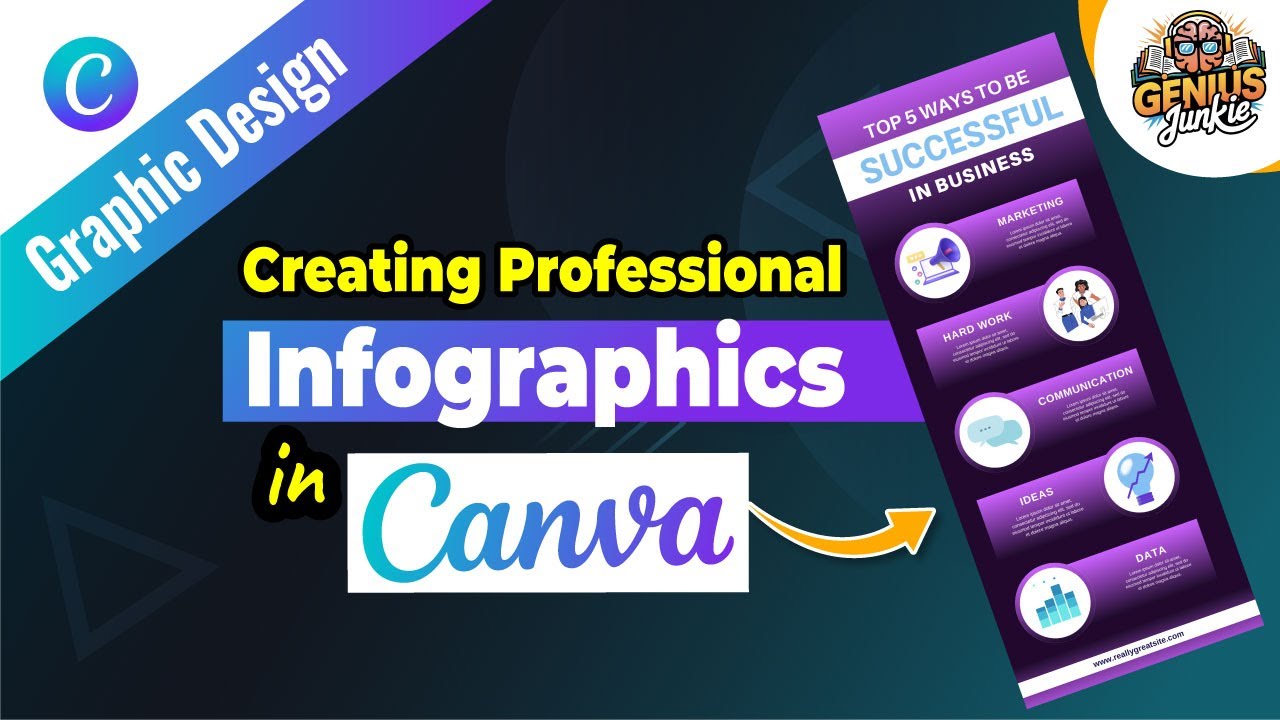
Unlock Your Data's Superpower: Creating Professional Infographics in Canva
Hey Genius Junkies! Are you tired of presenting important data in ways that just... don't land? You know, those endless bullet points or dry spreadsheets that make eyes glaze over? What if we told you there's a secret weapon to make your information not just understood, but truly unforgettable?
Enter the infographic! These visual powerhouses combine data, design, and storytelling to communicate complex ideas quickly and effectively. And the best part? You don't need to be a design guru to create stunning, professional infographics. All you need is Canva, and our easy step-by-step guide!
We recently dropped a video tutorial showing you exactly how it's done. This blog post breaks down the key steps and tips so you can start transforming your data into visual masterpieces today!
Why Infographics Are Your New Best Friend
- Boost Engagement: People are more likely to read and remember visual information.
- Simplify Complexity: Break down intricate data into digestible, easy-to-understand chunks.
- Enhance Shareability: Visually appealing content gets shared more often on social media.
- Build Credibility: Professional visuals make your reports, presentations, and brand look more authoritative.
Canva: Your Easy Infographic Design Studio
Canva has revolutionized design, making it accessible to everyone. With its intuitive drag-and-drop interface, vast template library, and extensive graphic elements, creating a professional infographic is no longer an intimidating task. Let's dive into how you can harness its power!
Your Step-by-Step Guide to Professional Infographics in Canva
- Start with a Strong Foundation: Choose a TemplateForget staring at a blank canvas! Canva offers thousands of infographic templates across various categories (process, statistical, timeline, comparison, etc.). Browse until you find one that aligns with your data type and aesthetic. This saves you tons of time and ensures a professional starting point.
- Customize Your Content: Text & DataNow, swap out the placeholder text with your actual information. Keep it concise! Infographics thrive on brevity. For numbers, use clear, readable fonts. Focus on one core message per section.
- Visualize with Impact: Icons, Charts & ImagesThis is where your data truly comes alive!
- Icons: Canva's extensive icon library can instantly represent concepts without needing words.
- Charts & Graphs: Input your data directly into Canva's chart tools (bar, pie, line graphs) to create dynamic visuals.
- Images: Use high-quality, relevant photos or illustrations sparingly to add context or visual appeal.
- Brand It Like a Pro: Colors & FontsConsistency is key!
- Color Palette: Stick to 2-4 primary colors that complement each other and reflect your brand or topic. Canva's color palette suggestions can be super helpful.
- Fonts: Use no more than 2-3 font styles – one for headings, one for body text, and perhaps an accent font. Ensure readability!
- Refine for Clarity & Flow: Layout & White SpaceA great infographic guides the eye.
- Hierarchy: Make sure the most important information stands out.
- White Space: Don't overcrowd your design! Ample white space makes your infographic feel clean, professional, and easy to read.
- Alignment: Ensure all elements are perfectly aligned for a polished look.
- Share Your Masterpiece: Download & DistributeOnce you're happy, download your infographic! Canva offers various formats like PNG (for high-quality web use), JPG, or PDF. Share it on social media, embed it in your blog, or include it in your next report!
Key Takeaways for Infographic Success
- Start with a clear message: What's the one thing you want your audience to remember?
- Less is more: Be concise with text and impactful with visuals.
- Use a consistent design: Stick to a coherent color palette and font scheme.
- Leverage Canva's resources: Templates, icons, and charts are your best friends.
- Prioritize readability: Ensure your design is easy on the eyes and simple to understand.
- Watch our video tutorial: For a visual walkthrough of all these steps and more pro tips!
Ready to turn your boring data into stunning visual stories? Head over to our YouTube channel and watch our full tutorial: Creating Professional Infographics in Canva Easy Step by Step Guide (Don't forget to like, comment, and subscribe while you're there for more design hacks and Etsy tutorials!).
Happy designing, Genius Junkies!