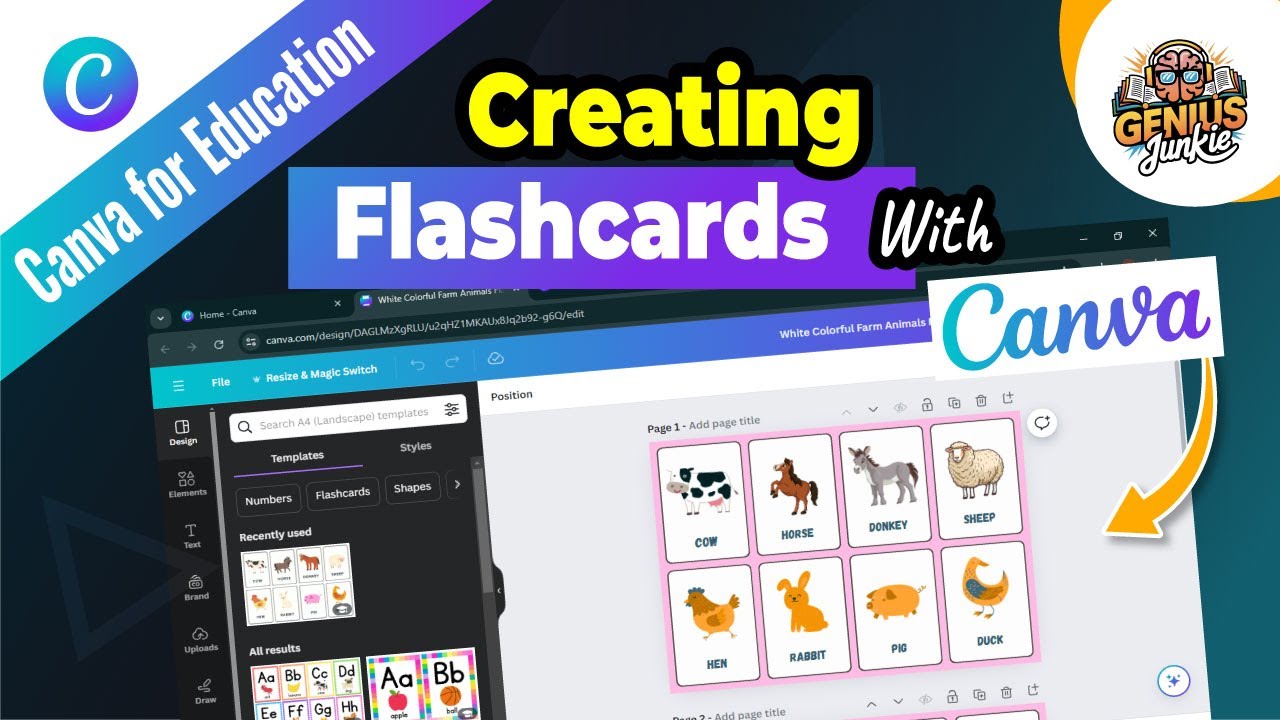
Unlock Your Learning Potential with Custom Canva Flashcards!
Hey Genius Junkies! Are you tired of sifting through generic, uninspiring flashcards that make studying feel like a chore? What if you could create beautiful, effective, and truly personalized study aids in minutes? Well, you're in luck! In our latest YouTube tutorial, we dive deep into Canva to show you exactly how to design custom flashcards that will make learning fun and stickier than ever before.
Whether you're a student prepping for exams, a teacher looking for engaging classroom resources, or a parent supporting your child's learning journey, Canva is your secret weapon. It’s incredibly user-friendly and packed with features that let you bring your creative vision to life, even if you're a design newbie!
Why Canva is Your Go-To for Flashcards
Forget complicated software! Canva simplifies the design process, allowing you to focus on the content. Here’s why it’s perfect for flashcards:
- Intuitive Interface: Drag-and-drop functionality makes design a breeze.
- Vast Template Library: Start with a professional base and customize it to your heart's content.
- Rich Asset Collection: Access millions of free and premium images, icons, fonts, and graphics.
- Print-Ready Designs: Easily download your creations for printing at home or professionally.
Your Step-by-Step Guide to Canva Flashcard Mastery
Ready to get started? Our video walks you through every click, but here’s a quick overview of what you’ll learn to do:
1. Select and Customize Your Flashcard Template
The first step to brilliant flashcards is choosing the right foundation. Canva offers a plethora of flashcard templates. You'll learn how to:
- Navigate to the "Flashcard" search in Canva.
- Browse through various styles and layouts.
- Select a template that resonates with your subject matter and aesthetic.
- Adjust the dimensions if needed for specific printing requirements.
2. Adding Text, Images, and Interactive Elements
This is where your flashcards truly come alive! We’ll show you how to populate your cards with all the essential information and visual aids:
- Text Power: Master adding text boxes, choosing eye-catching fonts, adjusting sizes, and selecting colors that enhance readability. Learn how to keep your information concise and impactful.
- Visual Boost: Discover how to search for and incorporate relevant images, icons, and illustrations from Canva’s extensive library. Visuals are key for memory recall!
- Smart Layouts: Get tips on arranging your elements logically, ensuring a clean and uncluttered look that's easy on the eyes.
3. Design Tips for Organization and Effectiveness
Great flashcards aren't just pretty; they're also highly functional. We'll share some Genius Junkie design secrets:
- Consistency is Key: Maintain a consistent color scheme, font pairing, and layout across all your flashcards for a cohesive and professional look.
- Front & Back Clarity: Design the front of your flashcard to pose a question or keyword, and the back to provide the answer or definition. Keep it clear and succinct.
- Strategic Use of Color: Utilize color to categorize information or highlight important terms, making it easier to scan and learn.
- Print & Practice: Once designed, we'll guide you on the best ways to download and print your flashcards, ready for action!
Key Takeaways from the Tutorial:
- Canva makes custom flashcard creation easy and fun.
- Start with a template, then personalize it to your needs.
- Use clear, concise text and engaging visuals (images, icons).
- Maintain design consistency for better readability and organization.
- Flashcards are versatile tools for students, teachers, and parents alike.
Ready to ditch the dull and embrace dynamic studying? Watch the full video tutorial, "How to Create Flashcards in Canva | Easy Study Aids Tutorial," on the Genius Junkie YouTube channel now! You’ll be amazed at how quickly you can transform your study game. Don't forget to like, subscribe, and share your amazing Canva flashcard creations with us in the comments!