Unlocking Remote Collaboration Magic with Canva: Your Team's Secret Weapon
Hey there, Genius Junkies! In today's dynamic world, remote work isn't just a trend—it's the norm for many creative teams. But let's be real, keeping everyone on the same page, sharing designs, and getting feedback can feel like herding cats. That's where Canva swoops in, not just as a design tool, but as your ultimate remote collaboration hub!
As a Canva expert, I've seen firsthand how its powerful features can transform a scattered virtual team into a synchronized design powerhouse. Forget the days of endless email attachments and version control nightmares. Canva makes real-time design, sharing, and editing a breeze, ensuring your team stays productive and creatively aligned, no matter where they are on the globe. Ready to dive into the secrets?
Setting Up Your Canva Collaboration Hub
The foundation of seamless remote teamwork in Canva begins with proper setup. Think of it as building your team's virtual design studio.
- Create a Canva Team: If you're on Canva Pro, setting up a team allows you to centralize everything. This is crucial for managing access, sharing brand assets, and creating a shared workspace.
- Project-Specific Folders: Organization is key! Create dedicated folders for each project, client, or campaign. This keeps designs, assets, and templates neatly categorized and easily searchable for everyone.
- Establish Your Brand Kit: This is a game-changer for consistency. Upload your brand logos, colors, fonts, and even brand guidelines to your Brand Kit. This ensures every team member has instant access to approved branding elements, maintaining a cohesive look across all designs.
- Team Templates: Standardize your workflow by creating and sharing custom templates. Whether it's social media posts, presentations, or marketing flyers, templates save time and ensure brand consistency, allowing your team to focus on content, not formatting.
Sharing Designs & Organizing Team Assets Like a Pro
Once your hub is set up, it's all about smooth execution. Canva's sharing and asset management features are designed to make collaboration intuitive.
- Smart Sharing Permissions: When sharing a design, you have powerful options. Choose "Can edit" for full collaboration, "Can comment" for feedback without altering the design, or "Can view" for simple sharing. This control prevents accidental changes and streamlines the feedback process.
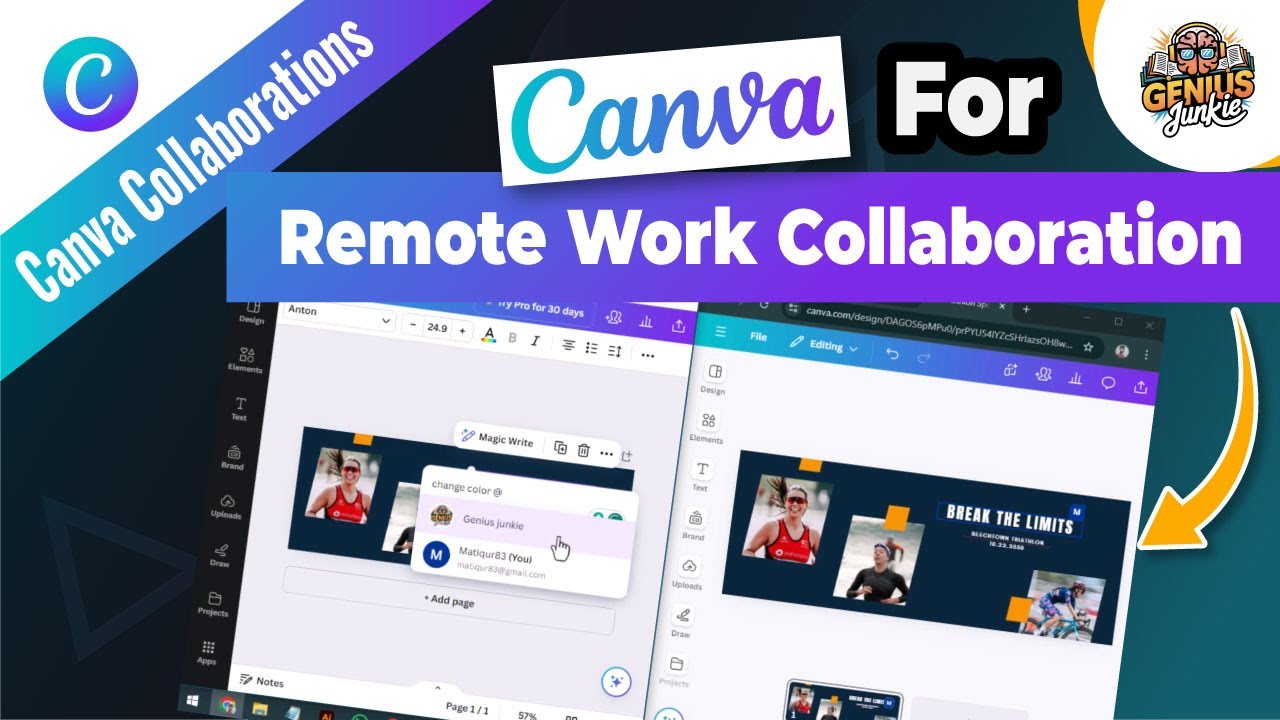
- Real-Time Editing: This is where the magic happens! Multiple team members can work on the same design simultaneously. See cursors move, elements shift, and text appear in real-time, just like a shared document. It's incredibly efficient and fosters a sense of collective creation.
- In-Design Comments: Say goodbye to vague feedback! Use Canva's commenting feature to leave specific notes directly on design elements. Tag team members, resolve comments, and keep all design-related discussions within the project itself.
- Version History: Made a mistake? Need to revert to an older design? Canva's version history (Pro feature) lets you see and restore previous versions of your designs, giving you peace of mind and a safety net.
- Centralized Asset Library: Beyond the Brand Kit, use your team's shared folders to store common images, icons, illustrations, and other design assets. This creates a single source of truth, preventing duplication and ensuring everyone uses approved resources.
Best Practices for Super-Productive Teams
While Canva provides the tools, a few best practices will elevate your team's collaborative success:
- Clear Communication: Even with Canva's comments, supplement with clear communication in your team's primary chat tool (Slack, Teams, etc.) to set expectations and follow up on critical feedback.
- Define Roles & Responsibilities: Clearly assign who is responsible for what part of the design process. Is one person the lead designer, another the content creator, and a third the final approver?
- Regular Check-ins: Schedule brief, regular check-ins to review progress, address bottlenecks, and ensure everyone feels supported.
- Provide Constructive Feedback: Encourage team members to be specific and constructive with their comments. Focus on solutions, not just problems.
Key Takeaways
- Canva transforms remote collaboration by centralizing design, sharing, and feedback.
- Set up your team with dedicated folders, a Brand Kit, and shared templates for efficiency.
- Leverage sharing permissions, real-time editing, and in-design comments for seamless workflow.
- Utilize version history and a centralized asset library for peace of mind and organization.
- Combine Canva's features with clear communication and defined roles for maximum productivity.
With these expert tips, your remote team can harness the full power of Canva, turning collaboration challenges into creative triumphs. Go forth, Genius Junkies, and design together, no matter the distance!