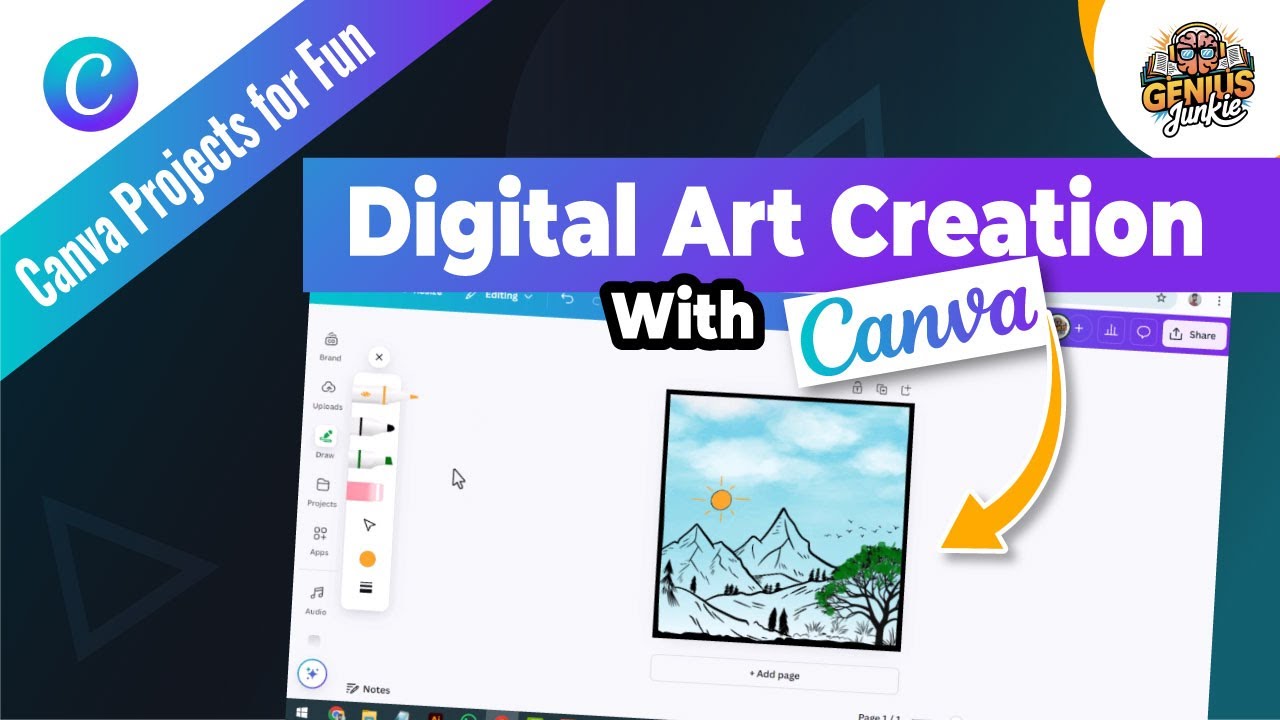
Unleash Your Inner Artist with Canva's Draw Tool!
Hey Genius Junkies! Are you ready to dive into the exciting world of digital art without needing expensive software or years of training? We've got incredible news for you! Canva, your go-to design platform, has truly outdone itself with its amazing Draw Tool. It's a game-changer for anyone looking to add a personal, hand-drawn touch to their designs, create unique illustrations, or simply have fun doodling digitally.
Whether you're a seasoned creative or just starting your artistic journey, Canva's Draw Tool offers a user-friendly and incredibly accessible way to bring your visions to life. In our latest YouTube tutorial, we walk you through everything you need to know, but for those who love to read along, here's a detailed breakdown of how to master this fantastic feature!
Getting Started with Canva's Draw Tool
Accessing the Draw Tool is super simple:
- Open Your Design: Start a new design in Canva (any size works!).
- Find the Draw Tab: On the left-hand sidebar, look for the "Draw" tab. If you don't see it immediately, click "Apps" and search for "Draw."
- Select Your Brush: Once activated, you'll see a panel with various brush options, colors, and an eraser.
Your Artistic Toolkit: Brushes, Colors & Effects
The magic begins with your brush selection and color palette. Canva offers several brush types, each with its own unique feel:
- Pen: Perfect for crisp lines, outlines, and detailed work.
- Marker: Gives a bolder, more opaque stroke, great for filling areas or creating strong statements.
- Crayon: Offers a softer, textured line, ideal for a hand-drawn, organic feel.
- Spray Paint: Creates a diffused, airy effect, fantastic for shading or adding subtle texture.
Color Selection: Don't limit yourself to the default colors! Click on the color swatch to open Canva's full color picker. You can choose from document colors, brand colors, or use the eyedropper tool to pick a color directly from your design. Experiment with different opacities for stunning layering effects!
The Eraser: Made a mistake? No problem! The eraser tool is your best friend. You can adjust its size for precise corrections or large clean-ups.
Level Up Your Art: Advanced Techniques
Once you're comfortable with the basics, it's time to explore techniques that will truly make your digital art shine:
Layering: Think of drawing on separate transparent sheets. In Canva, each time you select a new brush or color, you essentially create a new "drawing layer." This allows you to draw over existing elements without altering them. Use this to build depth, add details, or experiment without fear.
Shading: Add dimension to your artwork by playing with lighter and darker tones of the same color, or by adjusting the brush opacity. For instance, use a lighter shade with a lower opacity spray paint brush to create soft shadows, giving your drawing a 3D feel.
Adding Texture: Different brushes naturally create different textures. The crayon gives a rough, waxy texture, while the spray paint offers a grainy, airbrushed look. Combine these with varying opacities to add rich visual interest to your illustrations.
Pro Tips for Stunning Digital Art
- Practice Makes Perfect: Like any skill, drawing takes practice. Don't be afraid to doodle and experiment!
- Use Reference Images: If you're drawing something specific, use a photo as a guide. You can even place it in your Canva design and draw over it on a new layer, then delete the photo later.
- Combine with Canva Elements: Don't forget you're in Canva! Integrate your hand-drawn elements with existing photos, graphics, and text for truly unique designs.
- Embrace Imperfection: Hand-drawn art has a charm that perfectly symmetrical digital art often lacks. Let your unique style shine through!
Key Takeaways
- Canva's Draw Tool is accessible and beginner-friendly for digital art.
- Experiment with Pen, Marker, Crayon, and Spray Paint brushes for different effects.
- Utilize the full color palette and opacity settings for depth.
- Master layering to build complex artwork without commitment.
- Practice shading and texture with varying brush types and opacities.
- Combine hand-drawn elements with other Canva features for unique designs.
Ready to see these techniques in action? Head over to our YouTube channel and watch the full tutorial: "Creating Stunning Digital Art with Canva’s Draw Tool Step by Step Guide for Beginners!" You'll get a visual walkthrough that makes learning even easier. Grab your mouse or stylus, and let's create some genius junk!