Video Summary
Unleash Your Inner Artist: Mastering Canva's Draw Tool in 2026
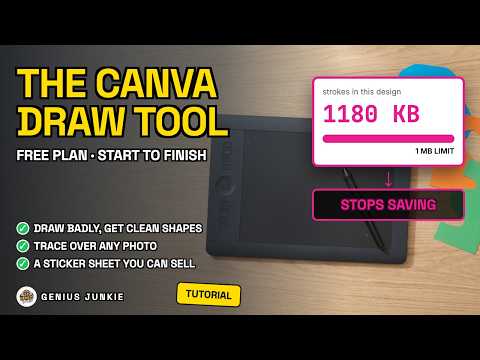
Ever felt that spark of creativity, only for a pesky tech glitch to snuff it out? You're not alone! The Canva Draw Tool is a fantastic way to add a personal, hand-drawn touch to your designs, but there's a sneaky little secret that most tutorials gloss over. It's the silent killer of creativity: a hidden limit that can stop your magnificent masterpiece from saving!
At Genius Junkie, we're all about empowering you with the knowledge to overcome these digital hurdles. So, buckle up! We're diving deep into the Canva Draw Tool, exploring its features, and most importantly, revealing how to sidestep that frustrating saving roadblock to ensure your artistic visions come to life, flawlessly, in 2026 and beyond.
The Power of Personalization: Exploring Canva's Four Brushes
Canva's Draw Tool is designed for intuitive creativity. It typically offers four core brushes, each with its own unique flair, allowing you to add everything from elegant signatures to playful doodles:
- Pen: Perfect for crisp lines, intricate details, and a classic writing feel. Think precise annotations or delicate outlines.
- Marker: Offers a bolder, more opaque stroke, great for filling in areas, creating strong headings, or giving a hand-drawn illustration a vibrant pop.
- Highlighter: A semi-transparent brush that's fantastic for emphasizing text or adding subtle, translucent washes of color without obscuring what's underneath.
- Eraser: Your best friend for correcting mistakes, refining edges, and sculpting your lines. It gives you the freedom to experiment without fear.
By experimenting with these brushes, along with varying their size and opacity, you can achieve a surprising range of artistic effects. The key is to play around and discover what works best for your unique style and project.
The Silent Saboteur: Unmasking the Hidden Saving Limit
Here's the bombshell: while Canva encourages boundless creativity, there's an unspoken technical threshold. Many users pour their heart into a detailed drawing, only to find that when they try to save or download their design, the drawing element either disappears, reverts to an earlier state, or simply refuses to process. It's infuriating!
This limit often stems from the sheer complexity of vector data generated by too many individual strokes or points within a single drawing element. Web browsers and Canva's processing engine have finite resources. An overly intricate drawing can overwhelm these resources, leading to performance issues and, ultimately, a failure to save that specific drawing element correctly.
Think of it like trying to fit an entire orchestra into a tiny broom closet – it just won't work efficiently, and some instruments (or strokes) will inevitably be left out or break.
Strategies to Conquer the Limit & Save Your Masterpiece
Knowledge is power! Now that you know about the limit, you can easily work around it:
- Draw in Batches: Instead of creating one giant, complex drawing, break it down. Draw a section, then click 'Done' on the Draw Tool to finalize that element. Start a new drawing element for the next section. This keeps individual elements manageable.
- Simplify Strokes: Aim for efficiency in your lines. Sometimes, a few well-placed strokes are more effective than hundreds of tiny, overlapping ones.
- Save Frequently: This is a golden rule for any digital work! Canva auto-saves, but explicitly saving after completing a significant drawing segment (by clicking 'Done' on the Draw Tool) ensures that segment is properly rendered and stored.
- Use Layers Wisely: If you're building a complex illustration, consider using multiple drawing elements for different parts. This not only helps with the saving limit but also gives you more control over editing later.
- Optimize Your Browser: Ensure your browser is up-to-date and close unnecessary tabs to free up memory, especially when working on detailed designs.
Pro Tips for Next-Level Drawing in Canva
Beyond avoiding the saving snag, here are a few extra tips to elevate your Canva drawing game:
- Combine with Other Elements: Don't just draw! Integrate your hand-drawn elements with Canva's vast library of shapes, photos, and text. This creates dynamic, unique designs.
- Practice Makes Perfect: Like any skill, digital drawing takes practice. Don't be afraid to doodle, experiment with different colors and opacities, and find your rhythm.
- Use a Stylus or Tablet: For more precision and a natural drawing feel, consider using a digital stylus or drawing tablet with your computer or tablet. It makes a world of difference!
Your Creative Journey Starts Now!
The Canva Draw Tool is a fantastic asset for adding a personal touch to your brand, presentations, social media, and more. By understanding its capabilities and, crucially, its limitations, you can harness its full potential without the frustration. So go forth, create, and share your amazing hand-drawn designs with confidence!
Ready to put these tips into action? Dive into Canva and start drawing! And if you found this helpful, be sure to check out the full video for a step-by-step walkthrough!
Key Takeaways
- Canva's Draw Tool offers four versatile brushes (Pen, Marker, Highlighter, Eraser) for diverse artistic effects.
- A hidden limit, often caused by excessive stroke complexity in a single drawing element, can prevent your work from saving.
- To bypass the limit, draw in smaller batches, simplify strokes, and finalize/save drawing elements frequently.
- Combine hand-drawn elements with Canva's existing assets to create unique, dynamic designs.
- Using a digital stylus or tablet can significantly improve precision and the natural feel of drawing in Canva.
Detailed Breakdown
[00:00] Introduction to Canva Draw Tool 2026
Setting the stage for using Canva's Draw Tool and hinting at a common, frustrating problem.
[01:30] Exploring Canva's Four Brushes
A detailed look at the Pen, Marker, Highlighter, and Eraser brushes and their best uses.
[03:15] Unmasking the Hidden Saving Limit
The big reveal: understanding why complex drawings sometimes fail to save in Canva.
[05:00] Strategies to Conquer the Limit
Practical, actionable steps to avoid the saving issue and ensure your designs are preserved.
[06:45] Pro Tips for Next-Level Drawing
Advanced advice for combining elements, practicing, and enhancing your drawing experience.
[08:00] Conclusion & Next Steps
Recap of key learnings and encouragement to start creating with confidence.
This tutorial was originally published as a YouTube video on Genius Junkie. Watch the full video here for visual demonstrations and additional tips!