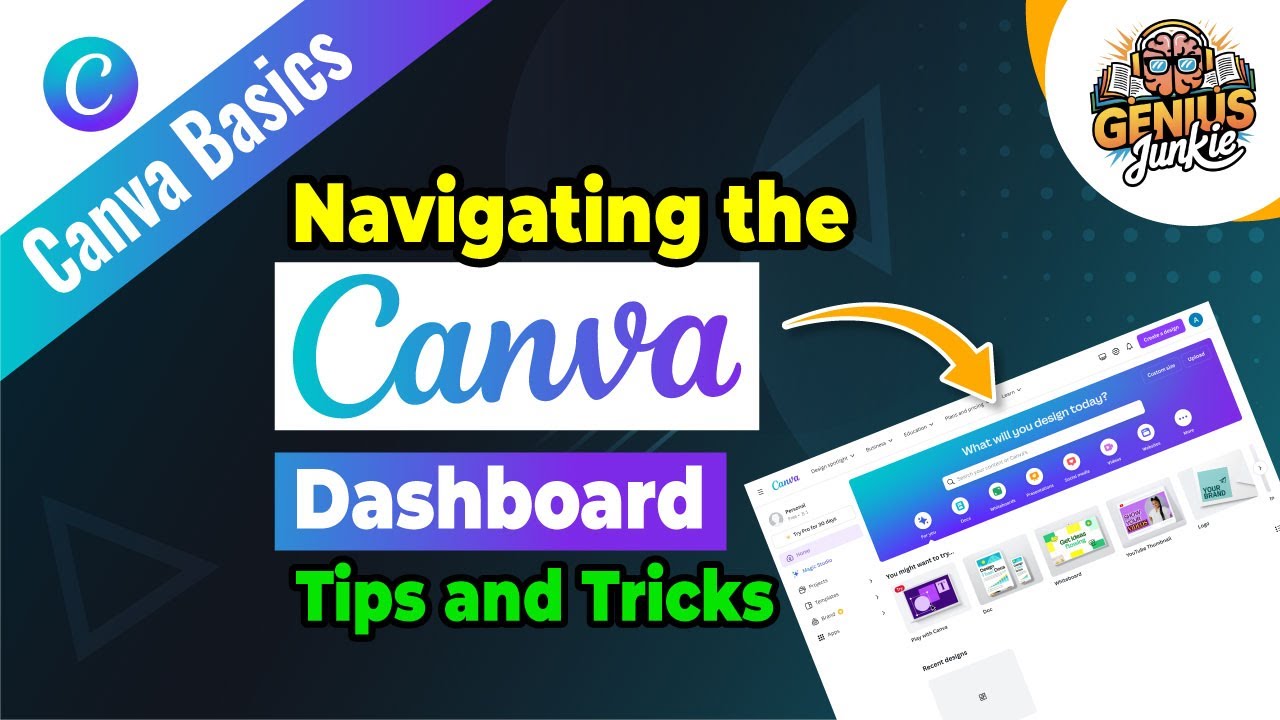
Welcome to Your Creative Command Center: The Canva Dashboard!
Hey Genius Junkies! If you've just started your journey with Canva, or maybe you've been dabbling but feel a little lost once you log in, you're in the right place. The Canva dashboard is your creative command center, your launchpad for every amazing design you'll ever create. It might seem like a lot at first glance, but trust us, once you understand its layout, you'll be navigating it like a seasoned pro.
In this post (and our accompanying video tutorial, linked below!), we're going to break down every essential feature of the Canva dashboard. Get ready to unlock Canva's full potential and make your design process smoother, faster, and more fun!
The Top Navigation Bar: Your Quick Access Hub
Let's start at the very top. This bar is all about quick actions and essential settings:
- Search Bar: This is your best friend! Looking for a specific template? Need a particular element? Or perhaps you want to find an old design? Just type it in here.
- Create a design: The magic button! Clicking this opens a dropdown menu with a plethora of options. You can start with a custom size, choose from popular design types like social media posts, presentations, or documents, and even import files. This is where your design journey truly begins!
- Notifications: Keep an eye on this bell icon for updates, new features, or messages related to your designs.
- Settings & Profile: Located on the far right, this is where you can manage your account, billing, team settings, and profile information. It’s worth exploring to personalize your Canva experience.
The Left Sidebar: Your Creative Toolkit
Now, let's move to the left side of your screen. This sidebar is packed with powerful tools to help you organize, explore, and enhance your designs:
- Home: Always brings you back to this main dashboard view, showing your recent designs and recommendations.
- Projects: This is your digital filing cabinet! Here, you'll find all your designs, images, videos, and even folders you've created to keep everything organized. A well-organized "Projects" section saves you tons of time.
- Templates: Dive into Canva's vast library of pre-designed templates. From social media graphics to resumes, presentations to invitations, there's a template for almost anything you can imagine.
- Brand Hub (Canva Pro Feature): If you have Canva Pro, this is where you set up your brand's colors, fonts, logos, and brand guidelines. Essential for maintaining consistent branding across all your designs!
- Apps: Supercharge your Canva experience with integrations! Connect to other platforms, discover new design tools, or add unique elements to your creations.
- Trash: Accidentally deleted something? Don't panic! Your deleted designs hang out here for a bit, giving you a chance to recover them.
The Main Canvas Area: Your Creative Playground
The central part of your dashboard is dynamic and personalized. You'll typically see:
- Recent Designs: A quick scroll will show you the projects you've been working on most recently, making it easy to pick up right where you left off.
- Recommended for You: Canva's AI suggests templates and design types based on your usage and popular trends.
- Quick Links: Easy access to start popular design types like Instagram Posts, Logos, Presentations, and more.
Why Mastering the Dashboard Matters
Understanding these sections isn't just about knowing where things are; it's about efficiency. When you know how to quickly find a template, access your projects, or start a new design, you free up more time for the actual creative process. It empowers you to turn your ideas into stunning visuals with confidence and speed.
Ready to see all of this in action? Make sure to watch our full video tutorial: Navigating the Canva Dashboard Beginner's Guide!
Key Takeaways for Canva Dashboard Navigation:
- The Top Navigation Bar is for quick actions like searching and creating new designs.
- The Left Sidebar is your organizational and exploratory hub for projects, templates, and brand assets.
- The "Create a design" button is your starting point for almost any project.
- Don't be afraid to click around and explore each section – that's how you truly learn!
- Utilize Projects to keep your designs tidy and easily accessible.
We hope this guide helps you feel more comfortable and confident navigating your Canva dashboard. Now go forth and create something amazing!
Don’t forget to LIKE this post if you found it helpful, COMMENT with your favorite Canva dashboard feature, and SUBSCRIBE to Genius Junkie for more tutorials and tips!